
Route Optimisation - Fixing Addresses that Can't Be Found
When running Optimise to automatically order your worksheets, you may run into an issue where some addresses can't be found.
Click on each of the problematic customers to update their address:
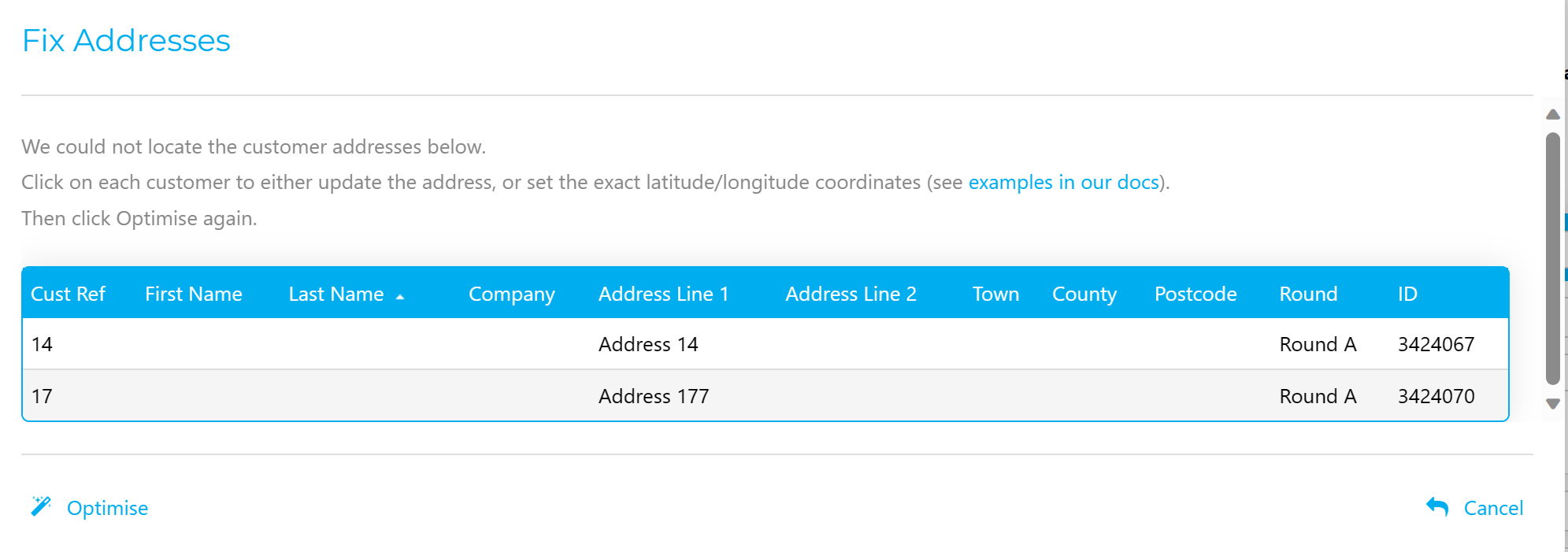
#1) Fill in missing details in the address
Click on the Google Maps link to locate the exact address:

Then update the address in CleanerPlanner to match the address shown on Google Maps e.g.
- Check for any typos in the Address
- Make sure Town and Postcode is filled in
#2) If Google Maps can't find an exact address, add the coordinates manually
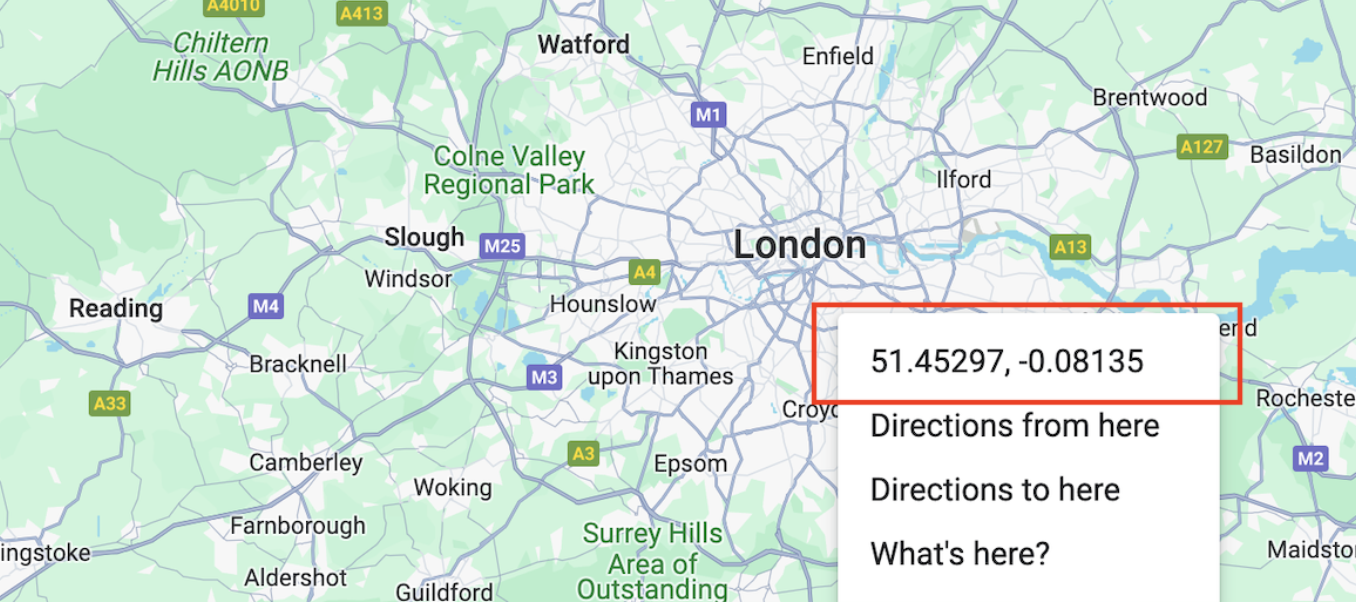
- Right click on the exact location on Google Maps
- Click on the coordinates to copy them (shown in red below)
- Go back to CleanerPlanner and paste into the box (ctrl-V or cmd-V), as shown below:
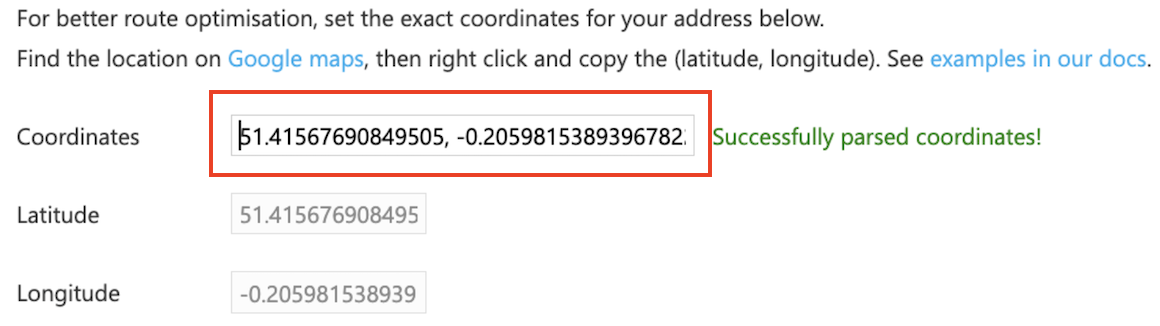
- Hit save and you're done!
Feel free to contact us if you need any help.